Jobber Google reviews: automate the ask after every job
Last updated: October 2026
Most happy customers will leave a Google review — if someone asks at the right moment and makes it one tap. The hard part isn't the message; it's remembering to send it after every single job. Here's how Jobber businesses can handle it.
Your three options
1. Ask by hand. Text or email each customer yourself after the job. Free, personal, and easy to forget on a busy week.
2. Jobber's Marketing Suite. Jobber offers review requests as part of its Marketing Suite, a $99/month add-on that also includes other marketing tools. A good fit if you want that whole bundle.
3. A focused review tool. ReviewAsk connects to Jobber and sends a Google review request whenever a job is completed, with one follow-up on day 3, for $39/month. Compare the two side by side.
What a good review request looks like
- Sent soon after the job is finished, while it's fresh.
- From your business name, short and personal.
- One link that opens your Google review form directly.
- At most one polite reminder — no endless drip.
- Sent to every customer. Google's policies prohibit offering incentives for reviews or selectively asking only happy customers.
A template you can use
Hi [first name] — thanks for choosing [business] today! If you have a minute, would you leave us a quick Google review? It really helps a local business like ours. [review link]
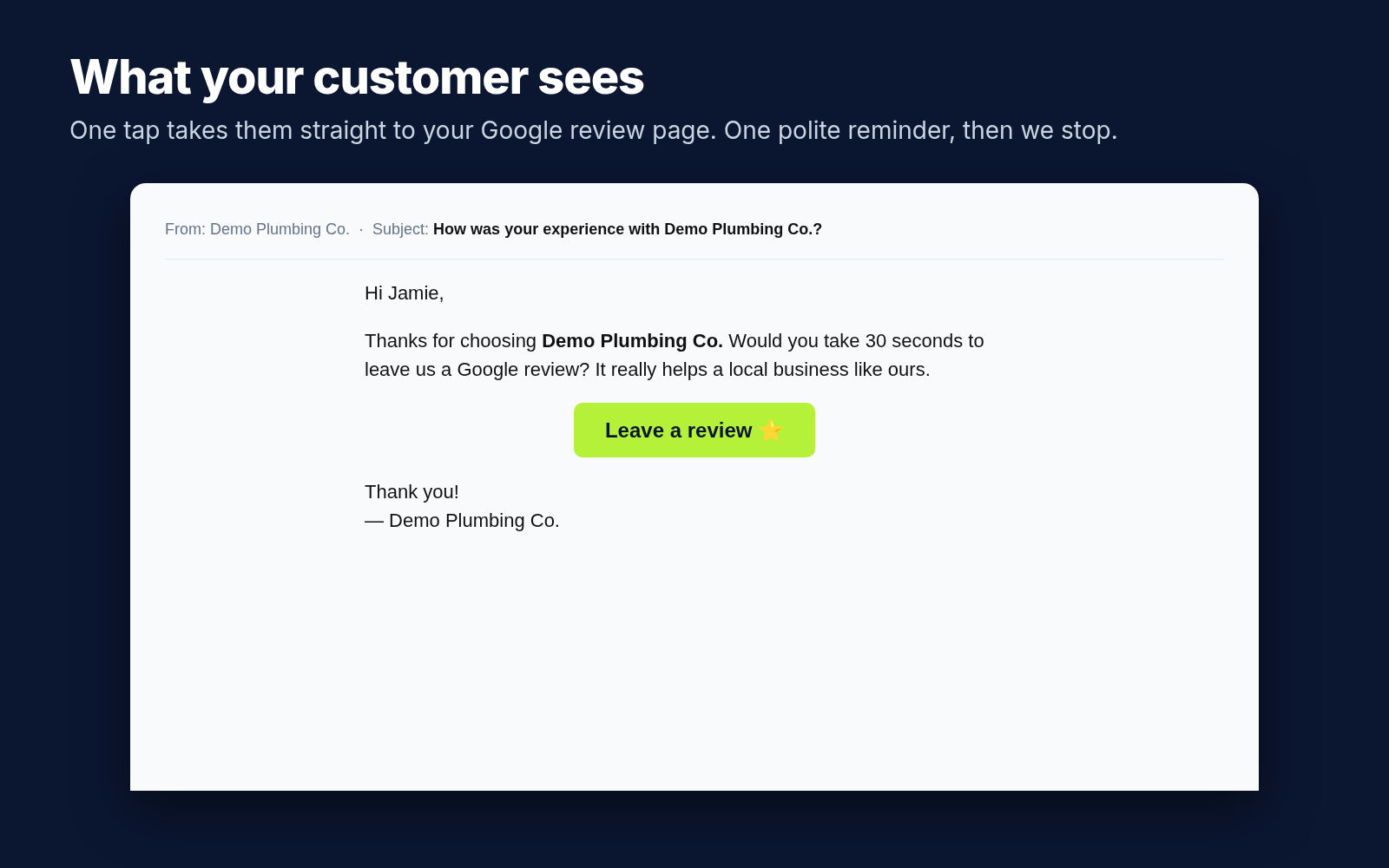
Find your review link in your Google Business Profile under “Ask for reviews” (or “Get more reviews”).
Setting it up with ReviewAsk
- Create an account and paste your Google review link.
- Turn on “Ask after every job” and connect Jobber once.
- Optional: upload a spreadsheet of past customers to catch up on your backlog.
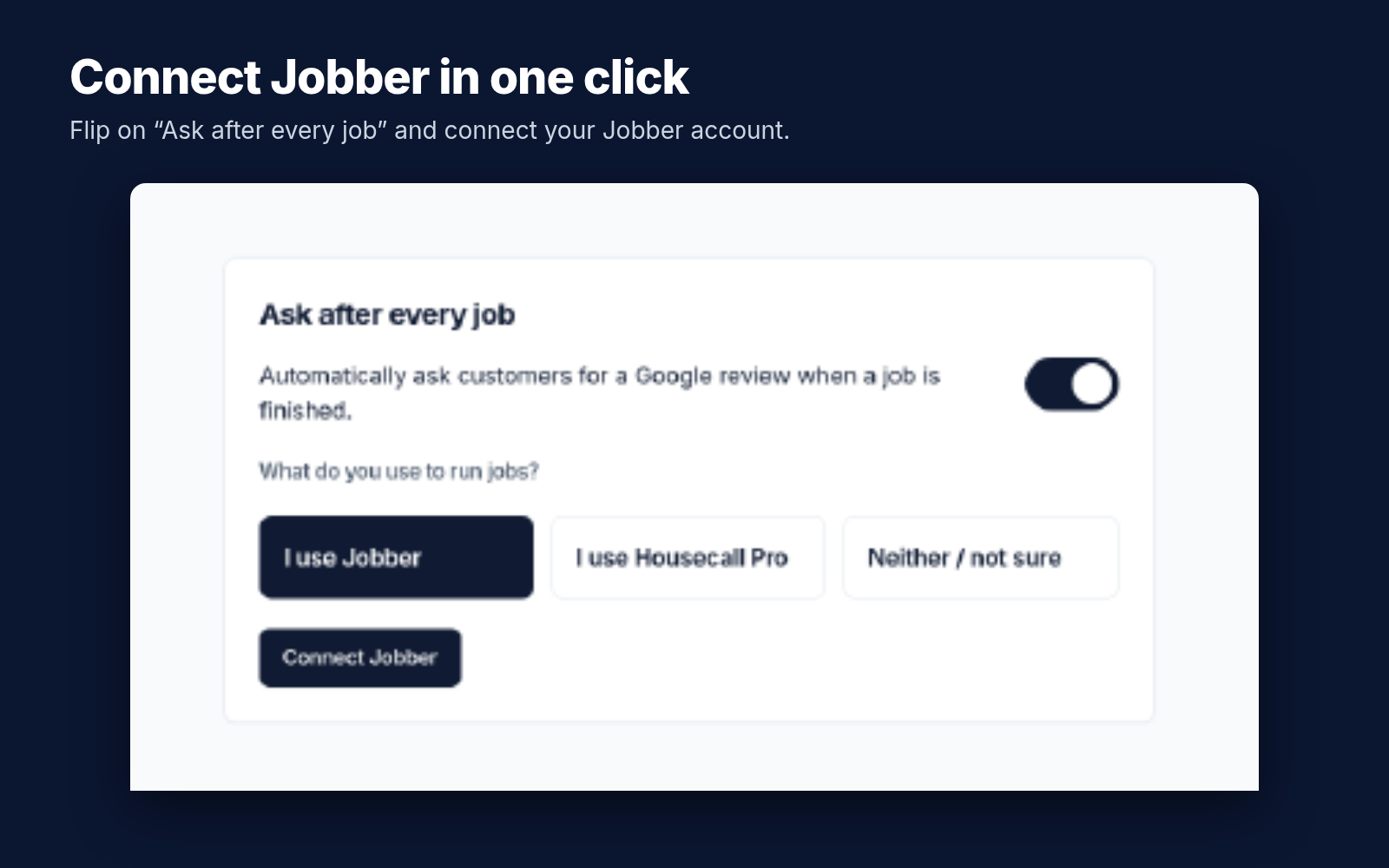
From then on, each completed job triggers a request, and your dashboard shows what was sent, reminded, or failed.
$39/month or $390/year after the trial · No contract · Cancel anytime. Marketing Suite pricing as listed by Jobber and may change. ReviewAsk is not affiliated with Jobber or Google.